# Screen sharing and front camera

### **Note: Use Firefox browser to use this feature**

<figure><img src="https://1712613615-files.gitbook.io/~/files/v0/b/gitbook-x-prod.appspot.com/o/spaces%2F8ce4sktIP4MjKK1cI7cP%2Fuploads%2FSQUKS6uuXsdpifLVV6SV%2FA%CC%89nh%20chu%CC%A3p%20ma%CC%80n%20hi%CC%80nh%202022-11-28%20201259.jpg?alt=media&#x26;token=d6e4cb3b-bece-4f60-a220-7d4f931f9299" alt=""><figcaption></figcaption></figure>

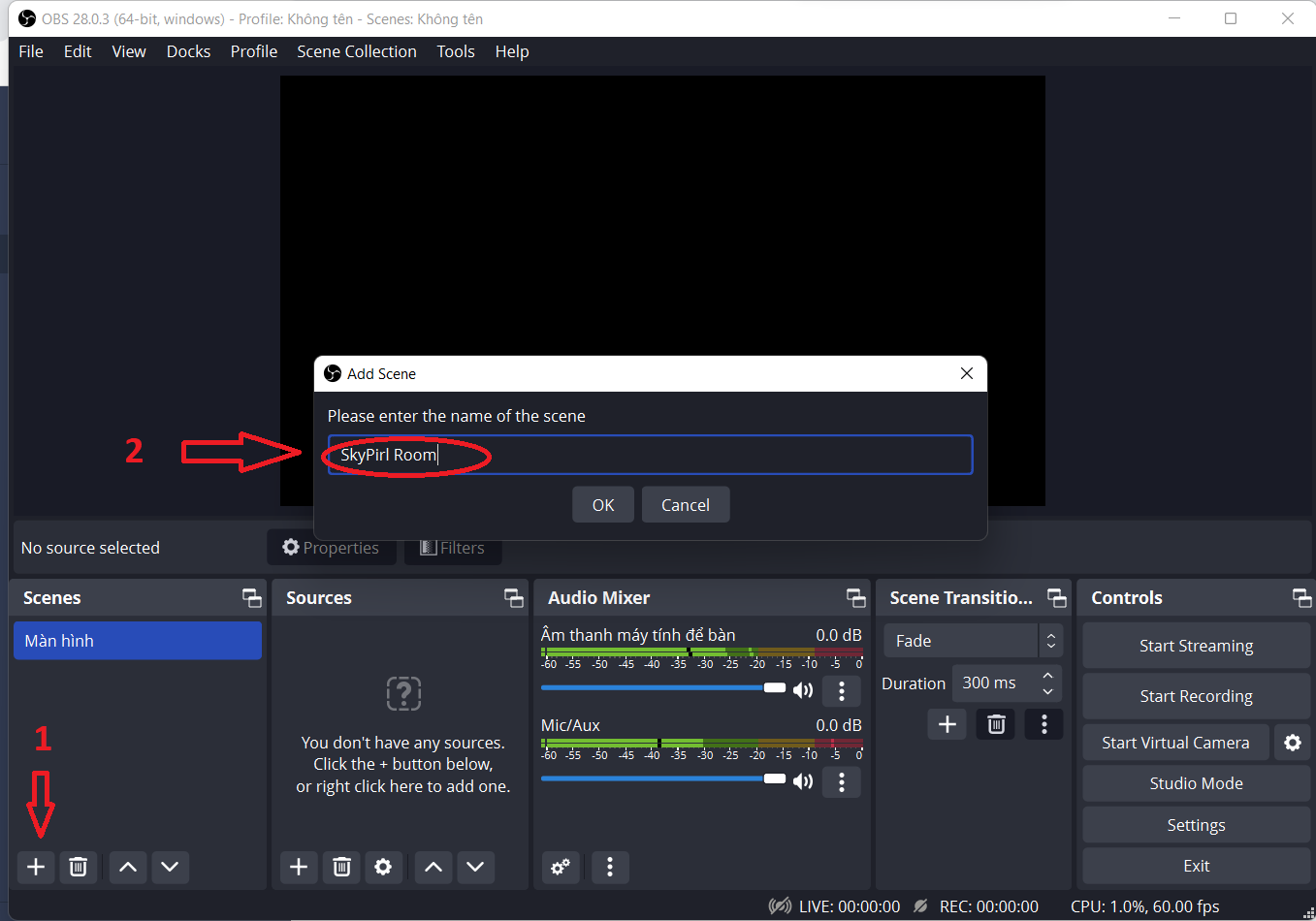
**Step 1:** In the **Scenes** section, click on the "**+"** and then name the room

<figure><img src="https://1712613615-files.gitbook.io/~/files/v0/b/gitbook-x-prod.appspot.com/o/spaces%2F8ce4sktIP4MjKK1cI7cP%2Fuploads%2FGNJm2ytddoARpdPAryJu%2FskyPirl1.png?alt=media&#x26;token=607175b1-eb59-49b9-b12d-8e708a0a980d" alt=""><figcaption></figcaption></figure>

**Step 2:** In the "**sources**" section, click on the "**+"** and select "Display Capture"

<figure><img src="https://1712613615-files.gitbook.io/~/files/v0/b/gitbook-x-prod.appspot.com/o/spaces%2F8ce4sktIP4MjKK1cI7cP%2Fuploads%2FY9zEtFIUg3IIUvK07XDn%2Fskypirl2.png?alt=media&#x26;token=c076b973-7f12-4bac-82b4-a05c613079f5" alt=""><figcaption></figcaption></figure>

This is the picture shown when you choose successfully

<figure><img src="https://1712613615-files.gitbook.io/~/files/v0/b/gitbook-x-prod.appspot.com/o/spaces%2F8ce4sktIP4MjKK1cI7cP%2Fuploads%2FHJ5q9OT4VHrLvLOOOto5%2Fskypirl3.png?alt=media&#x26;token=913f0331-44a3-452e-87b2-62c25b77411e" alt=""><figcaption></figcaption></figure>

To add a **Camera** to the screen share, click on the "**+**" then select "**Video capture Device**"

<figure><img src="https://1712613615-files.gitbook.io/~/files/v0/b/gitbook-x-prod.appspot.com/o/spaces%2F8ce4sktIP4MjKK1cI7cP%2Fuploads%2FJJRHk0q48sTOYBNu1Uxx%2Fskypirl4.png?alt=media&#x26;token=224296f4-caed-4449-a008-59bfa7f1ca50" alt=""><figcaption></figcaption></figure>

Then you choose the camera source and software

<figure><img src="https://1712613615-files.gitbook.io/~/files/v0/b/gitbook-x-prod.appspot.com/o/spaces%2F8ce4sktIP4MjKK1cI7cP%2Fuploads%2F6zAUEXx3uYe7qkrgsXL5%2Fskypirl5.png?alt=media&#x26;token=5cf3eaba-122b-40d5-9b62-28cd6a255097" alt=""><figcaption></figcaption></figure>

After setting up the camera, you can drag and drop the camera's video as big or small as you want.

<figure><img src="https://1712613615-files.gitbook.io/~/files/v0/b/gitbook-x-prod.appspot.com/o/spaces%2F8ce4sktIP4MjKK1cI7cP%2Fuploads%2Fw5UMZDbC3Loal99JSJnD%2Fskypirl6.png?alt=media&#x26;token=f8ef541f-ec84-4c6d-a022-9b3a6e387aa2" alt=""><figcaption></figcaption></figure>

To share your screen and use virtual camera from "OBS studio" click on "**Start Visual Camera**"

<figure><img src="https://1712613615-files.gitbook.io/~/files/v0/b/gitbook-x-prod.appspot.com/o/spaces%2F8ce4sktIP4MjKK1cI7cP%2Fuploads%2Fj1DZojc6WOQs2lg3bAa4%2Fskypirl7.png?alt=media&#x26;token=9569ef51-6c57-4c16-ad4f-0493c71e9ee3" alt=""><figcaption></figcaption></figure>

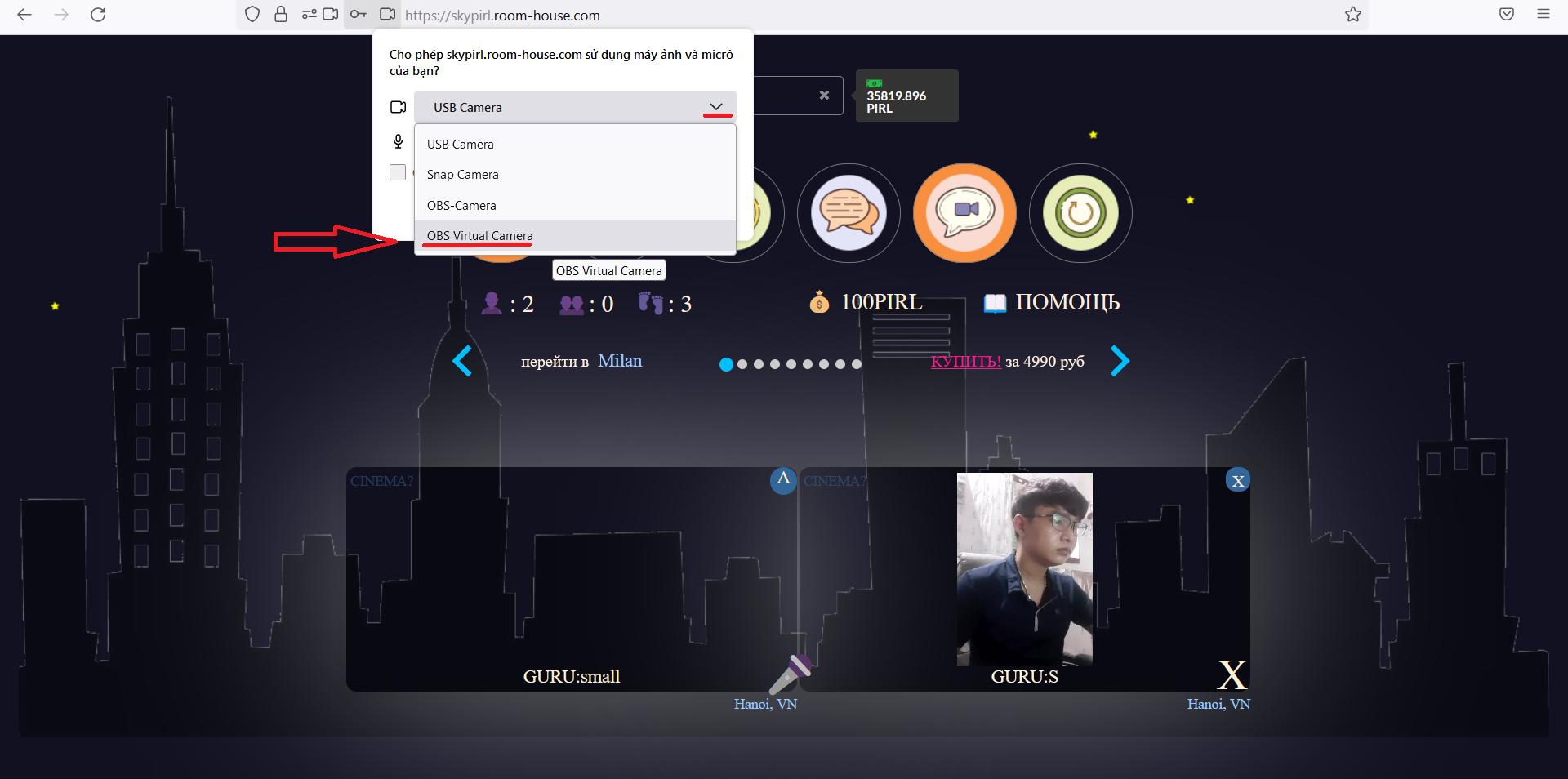
### **Step 3: You go to the Room-House decentralized meeting room, then click turn on the front camera. (**&#x4E;ote: Use Firefox browser to use this feature)

<figure><img src="https://1712613615-files.gitbook.io/~/files/v0/b/gitbook-x-prod.appspot.com/o/spaces%2F8ce4sktIP4MjKK1cI7cP%2Fuploads%2F2ME5YqQv4PTDdY0iVkjh%2Fskypirl9.png?alt=media&#x26;token=540efd63-766a-4d98-acfc-4f16740d139a" alt=""><figcaption></figcaption></figure>

After the window pops up asking to use the camera, click on the software "**OBS Visual Camera**"

<figure><img src="https://1712613615-files.gitbook.io/~/files/v0/b/gitbook-x-prod.appspot.com/o/spaces%2F8ce4sktIP4MjKK1cI7cP%2Fuploads%2Fy2k0LswX0fnX82RsYOBm%2Fskypirl8.png?alt=media&#x26;token=56b862d1-3b0a-4971-95d9-2292bf4bcea2" alt=""><figcaption></figcaption></figure>

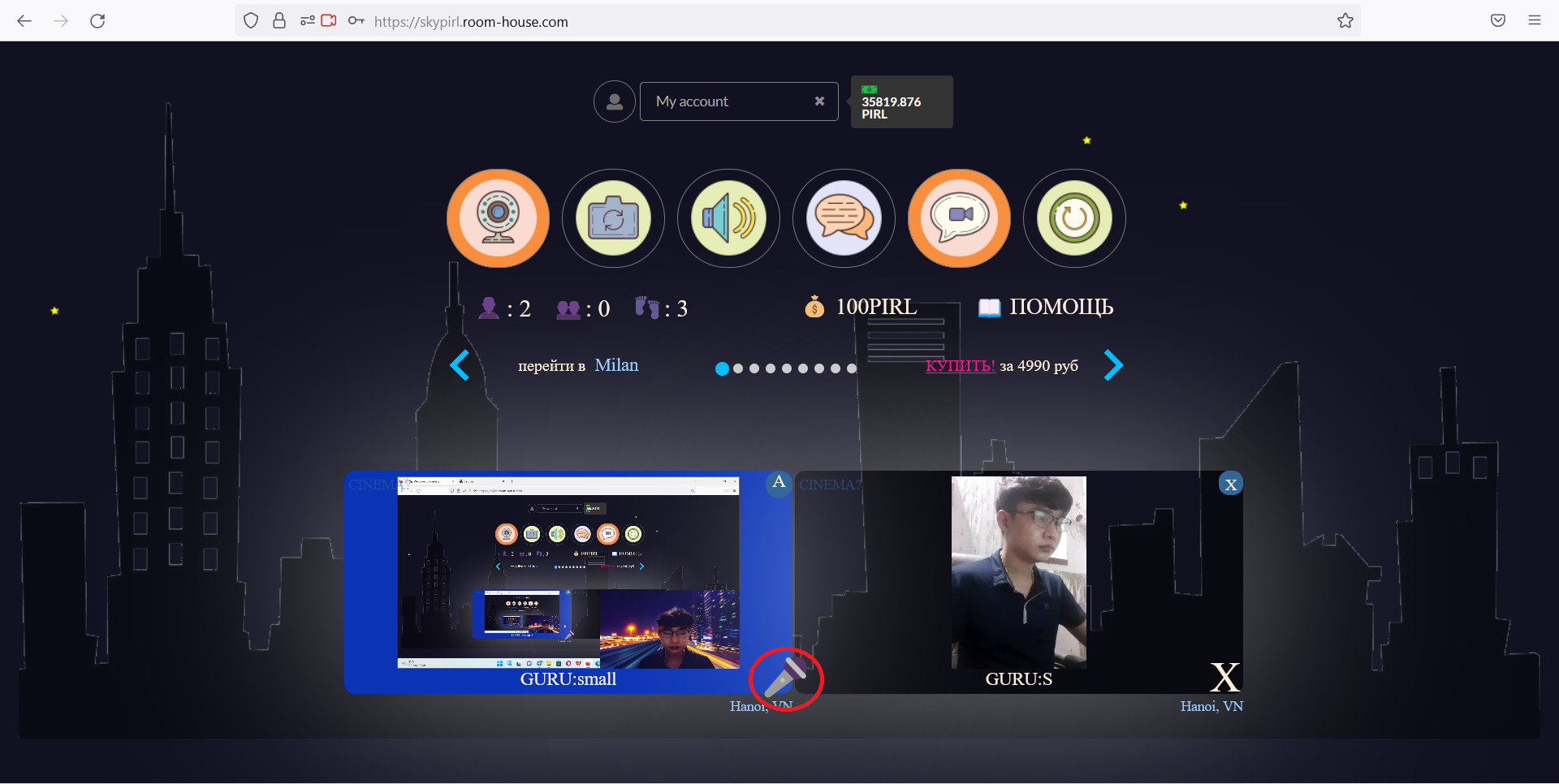
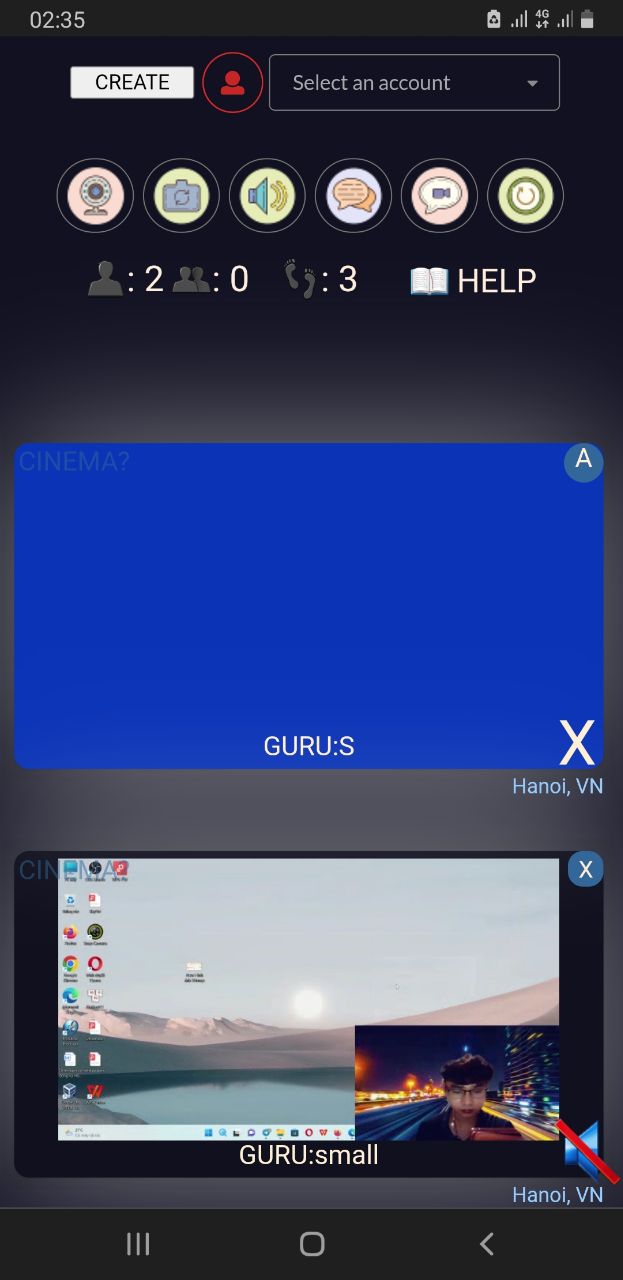
This is the image after you use OBS virtual camera. To share the audio mix screen you must enable the microphone

<figure><img src="https://1712613615-files.gitbook.io/~/files/v0/b/gitbook-x-prod.appspot.com/o/spaces%2F8ce4sktIP4MjKK1cI7cP%2Fuploads%2FCKa8EnnFp6PAwbPQpDYY%2Fskypirl10.png?alt=media&#x26;token=b01d8d17-30b3-4c72-b684-52614ddc032e" alt=""><figcaption><p>Computer</p></figcaption></figure>

<figure><img src="https://1712613615-files.gitbook.io/~/files/v0/b/gitbook-x-prod.appspot.com/o/spaces%2F8ce4sktIP4MjKK1cI7cP%2Fuploads%2FxTq5bdDkWCpAg1FE8Vit%2Fskypirl.jpg?alt=media&#x26;token=6b1522ab-ffeb-40ac-96fc-51926c696e91" alt=""><figcaption><p>Phone</p></figcaption></figure>

### Note: Use Firefox browser to use this feature

#### Room-House.com SkyPirl Pirl Rumhaus